Shopper and occupant login
Online orders, the suite bill, and the catalog a customer sees. A paid sale comes back here and decrements stock once.
Catalog, stock, and books
Root Tempo is the system of record under the other two products. StoreTempo is where a shopper or an occupant signs in. DutySeal is the day: duties, the bay, the calendar, and lease facts. Root Tempo holds the catalog, what is on hand, and the books for each door.
See how a door works Industries Staff sign in
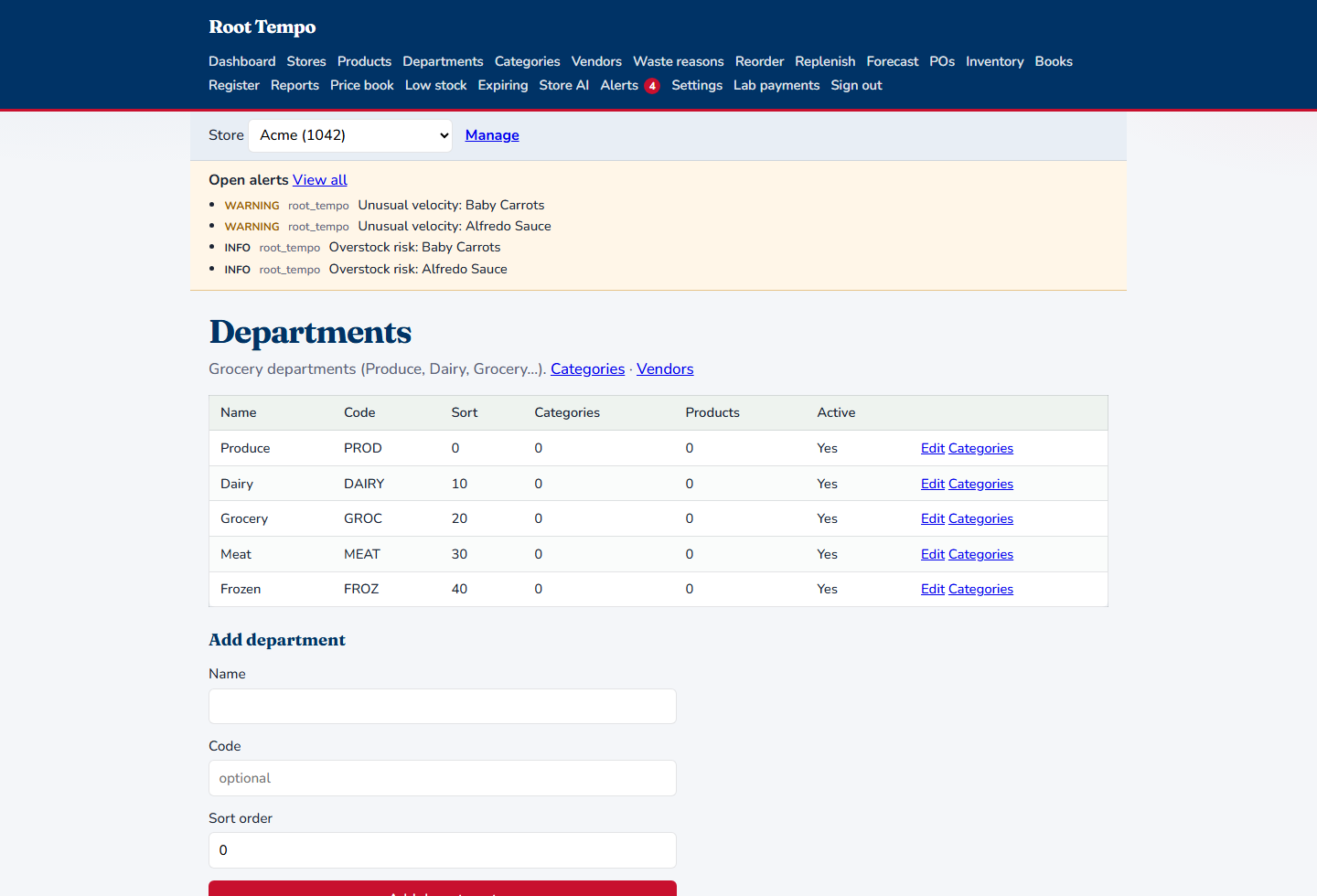
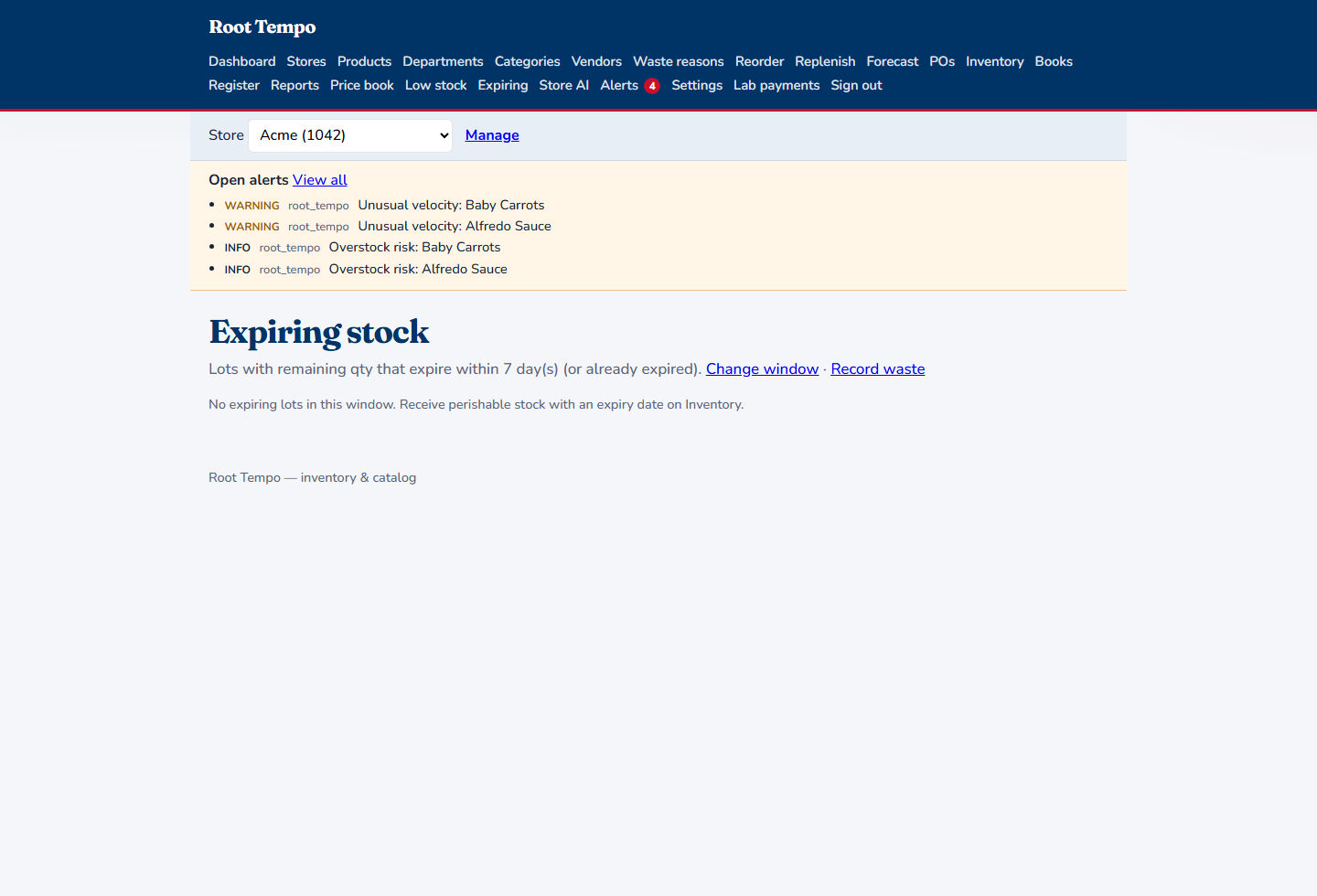
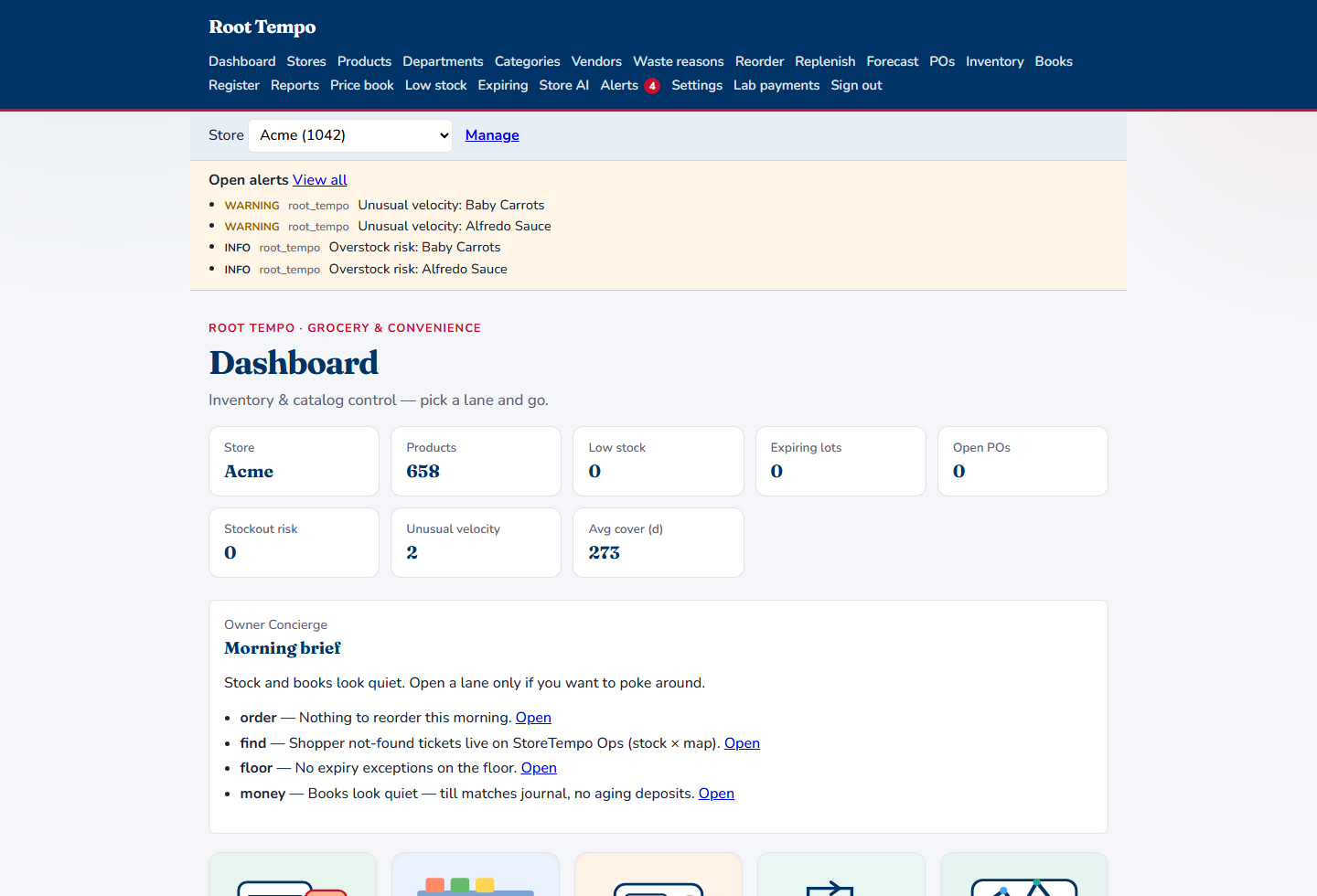
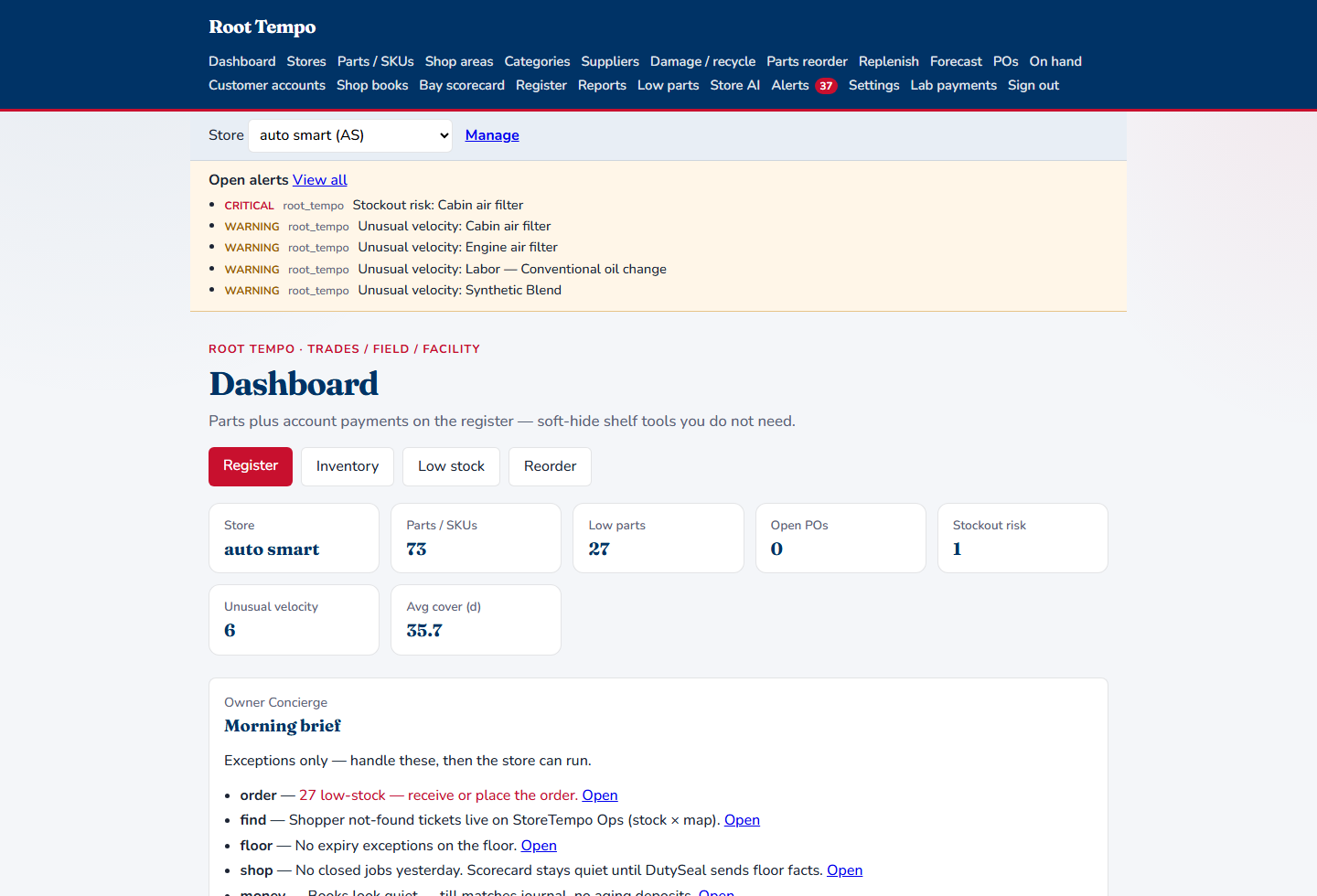
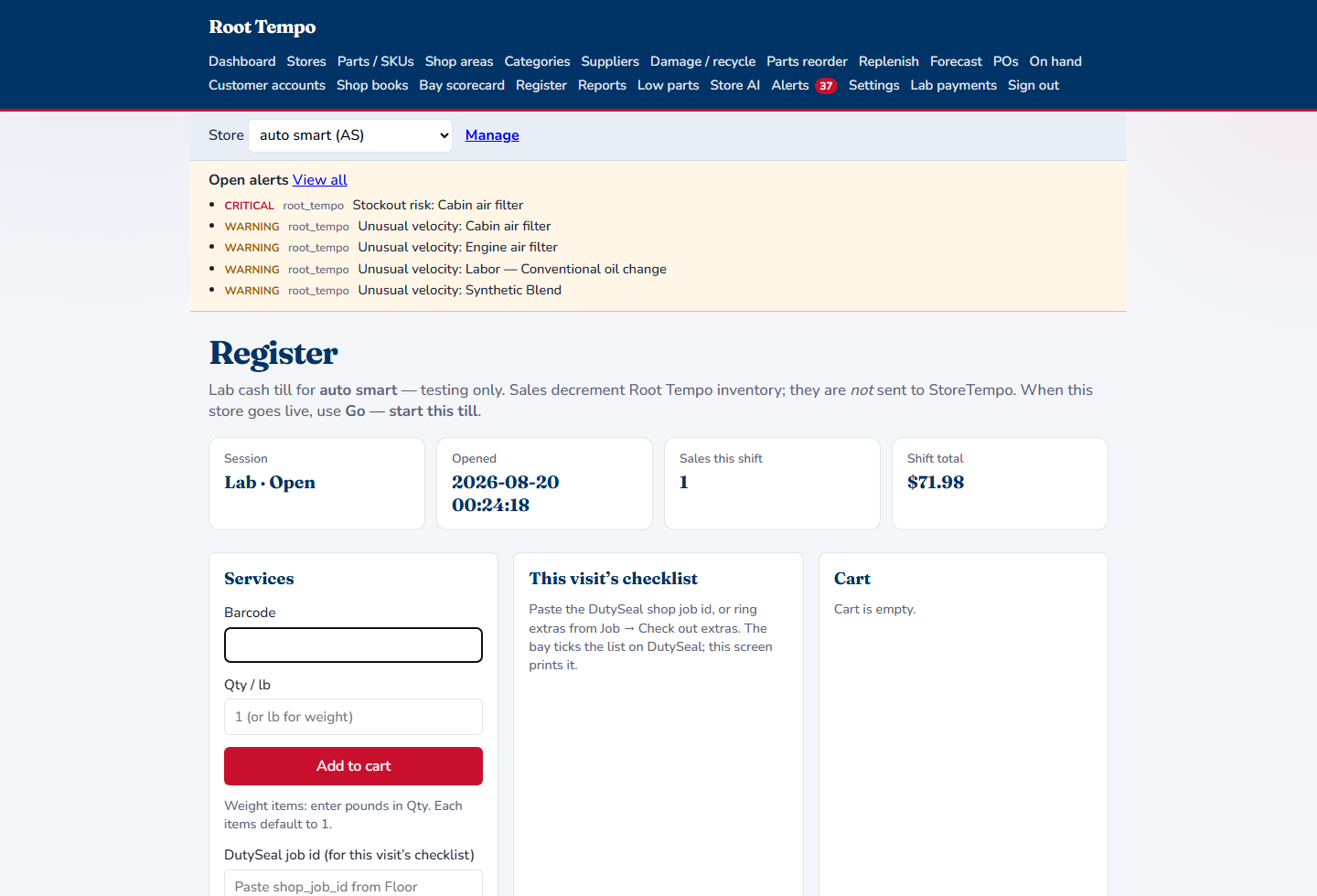
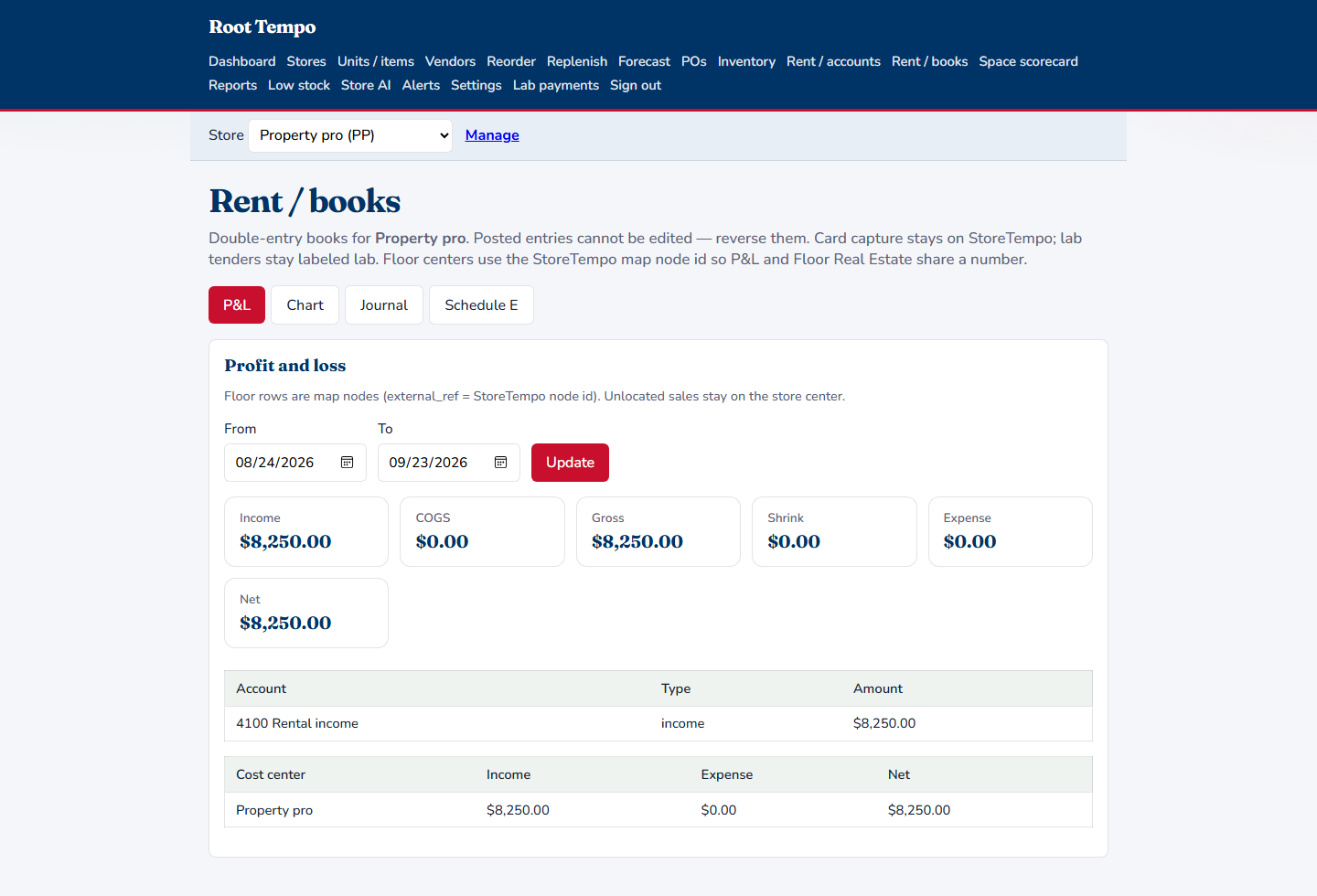
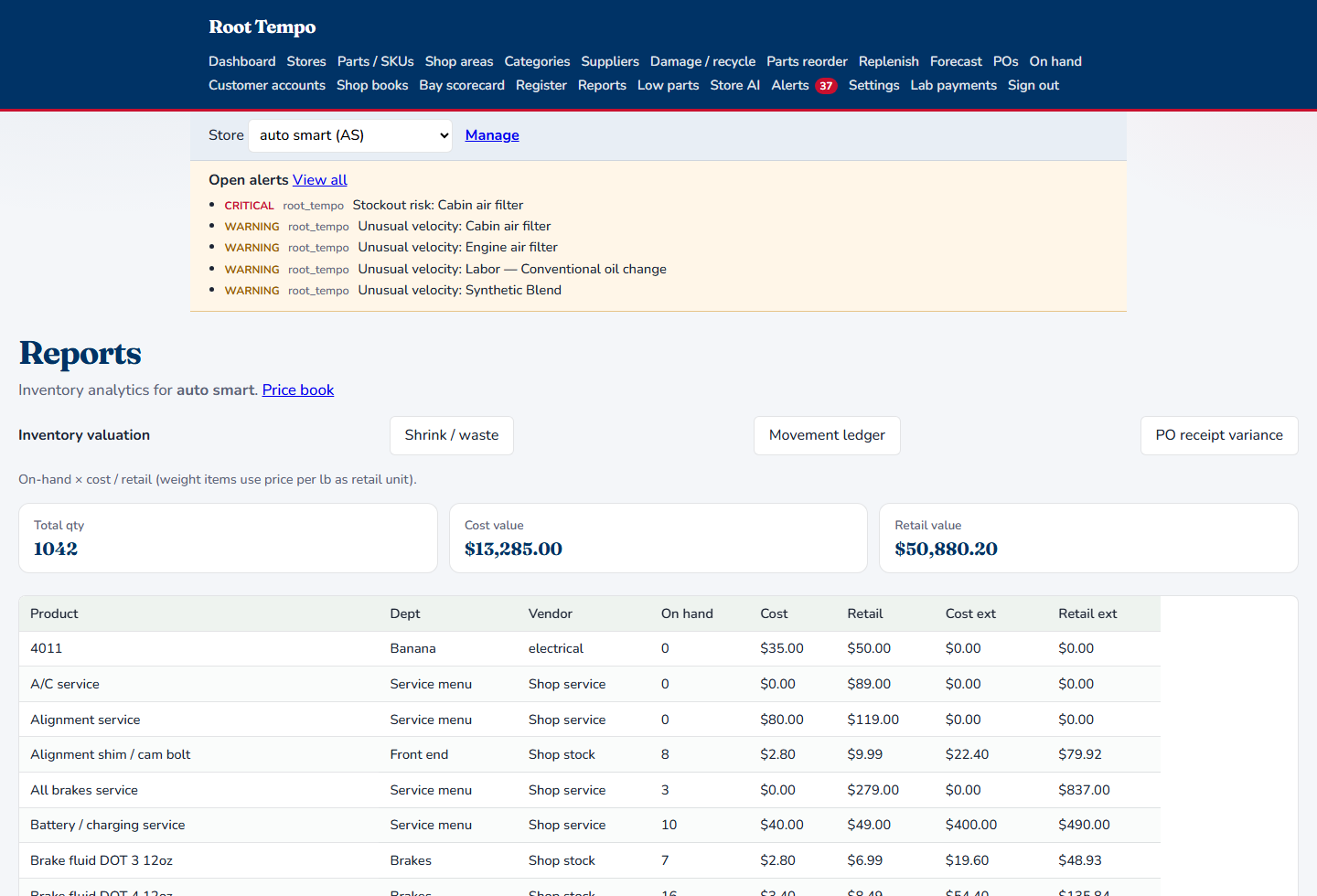
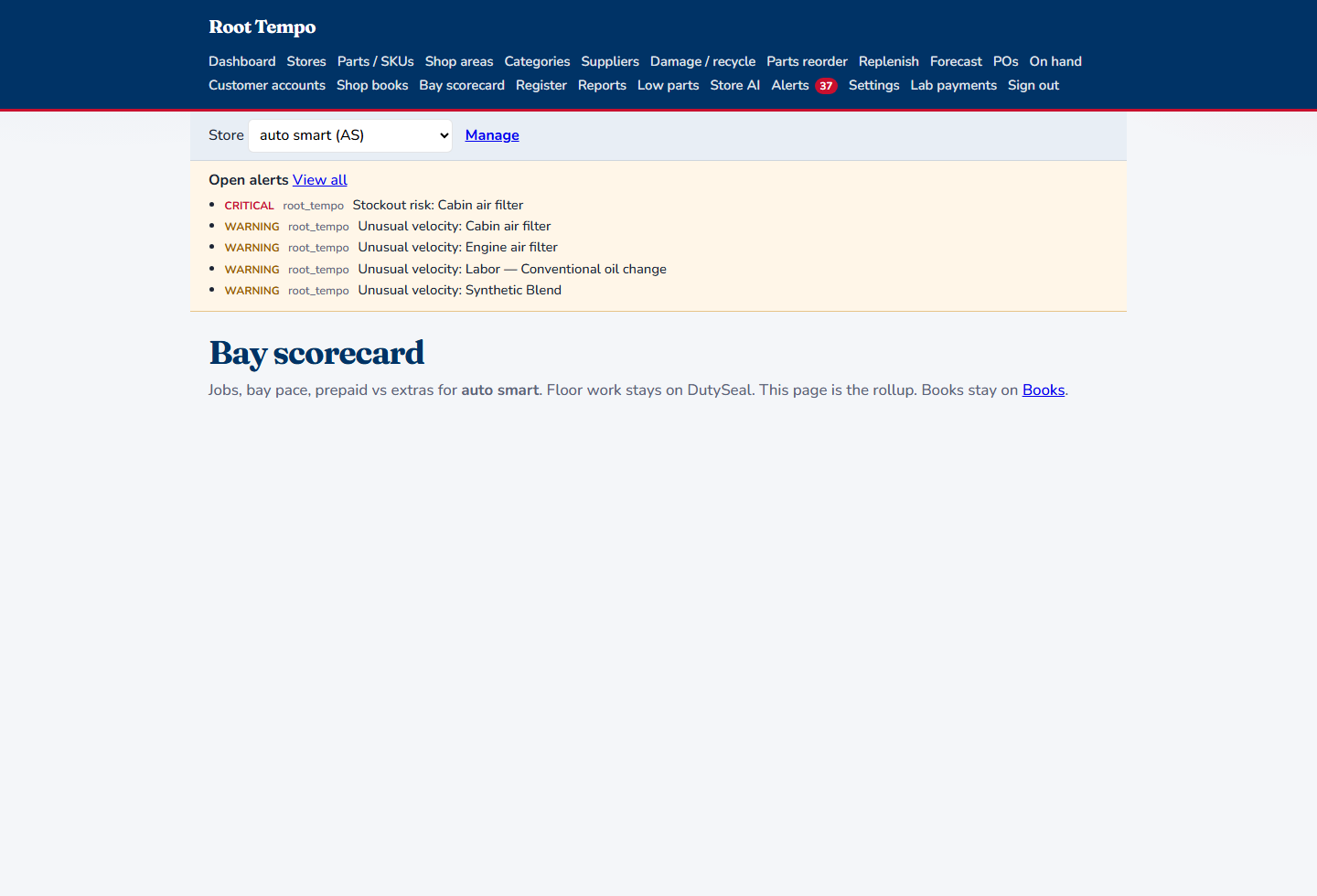
Screens below are the live office: a grocery door, an auto shop, and a property door. Same sign-in. Each door keeps its own catalog.
Shopper and occupant login
Online orders, the suite bill, and the catalog a customer sees. A paid sale comes back here and decrements stock once.
Catalog, on-hand, invoices, books
Products, parts, or menu items. Receive, count, and reorder. The till. Rent and account charges. The journal.
The day on the floor
Duties, inspections, the shop bay, and Spaces lease facts. It sends the industry. It does not keep the books.
One office
A door is one store. The picker at the top of every screen is the wall between them. Grocery, a shop, and a property can sit on the same staff login, and the words on the nav follow the door you have open.
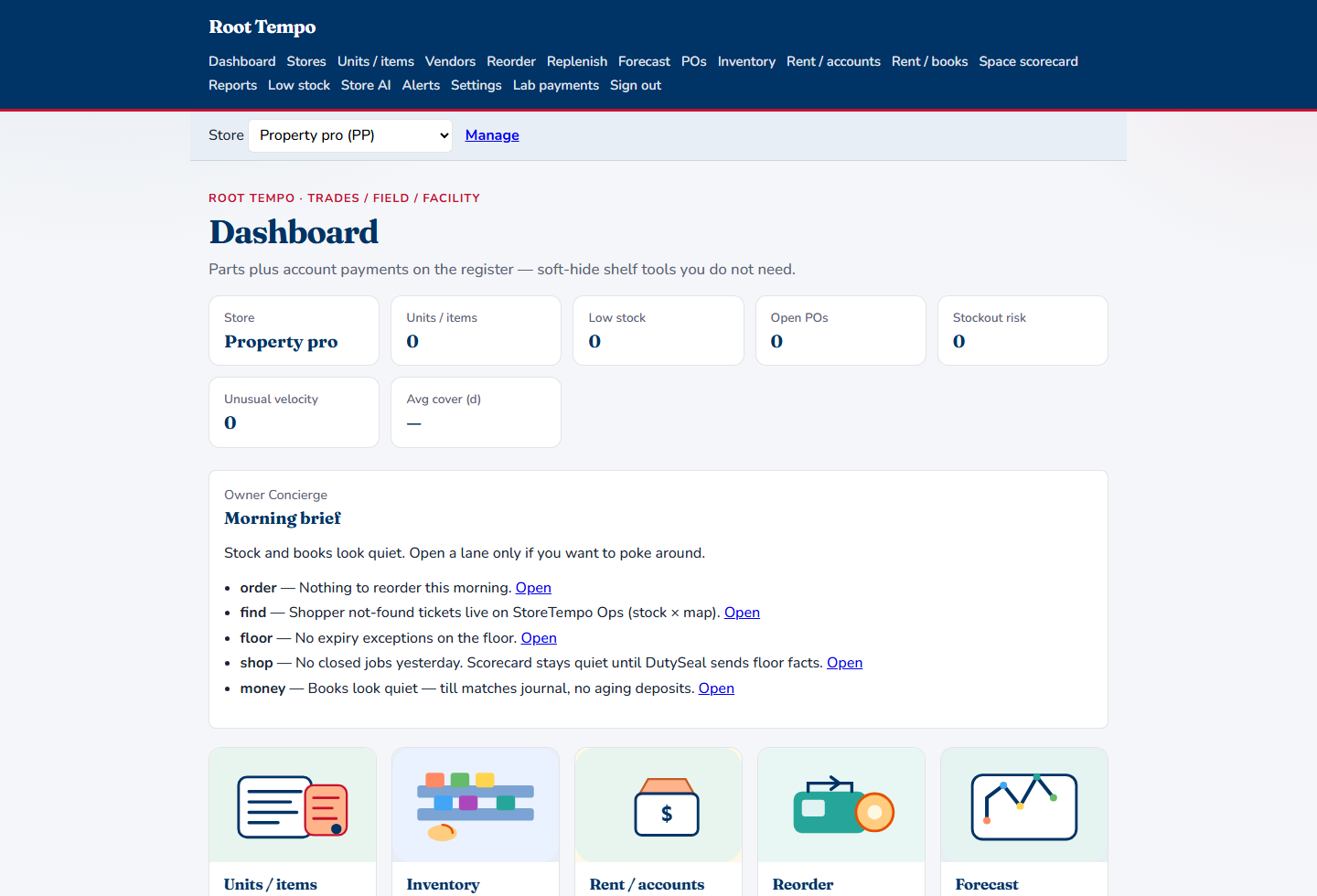
The grocery catalog stays on the grocery door. Pushing it onto a property door would turn suites into grocery items. Staff who can open more than one door still work one door at a time.
The loop
Every door uses the same spine. The industry changes the labels and which steps are on. A morning brief on the dashboard reads the door you have open: what to order, what the floor is waiting on, and whether the till matches the journal.
The catalog is the list this door sells or stocks. Grocery calls them products. A shop calls them parts. A restaurant calls them menu items. A property door does not build its rent roll out of this list.
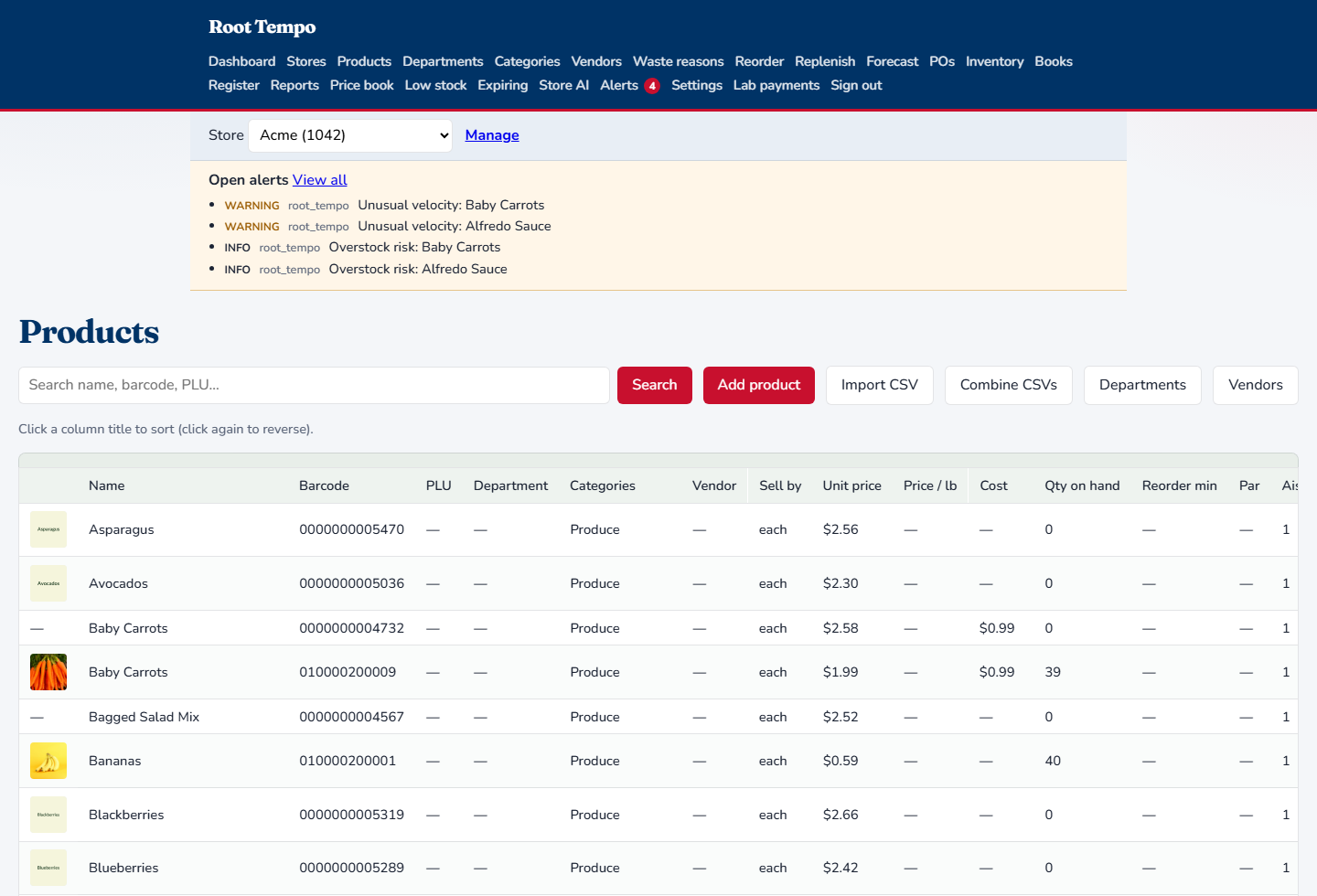
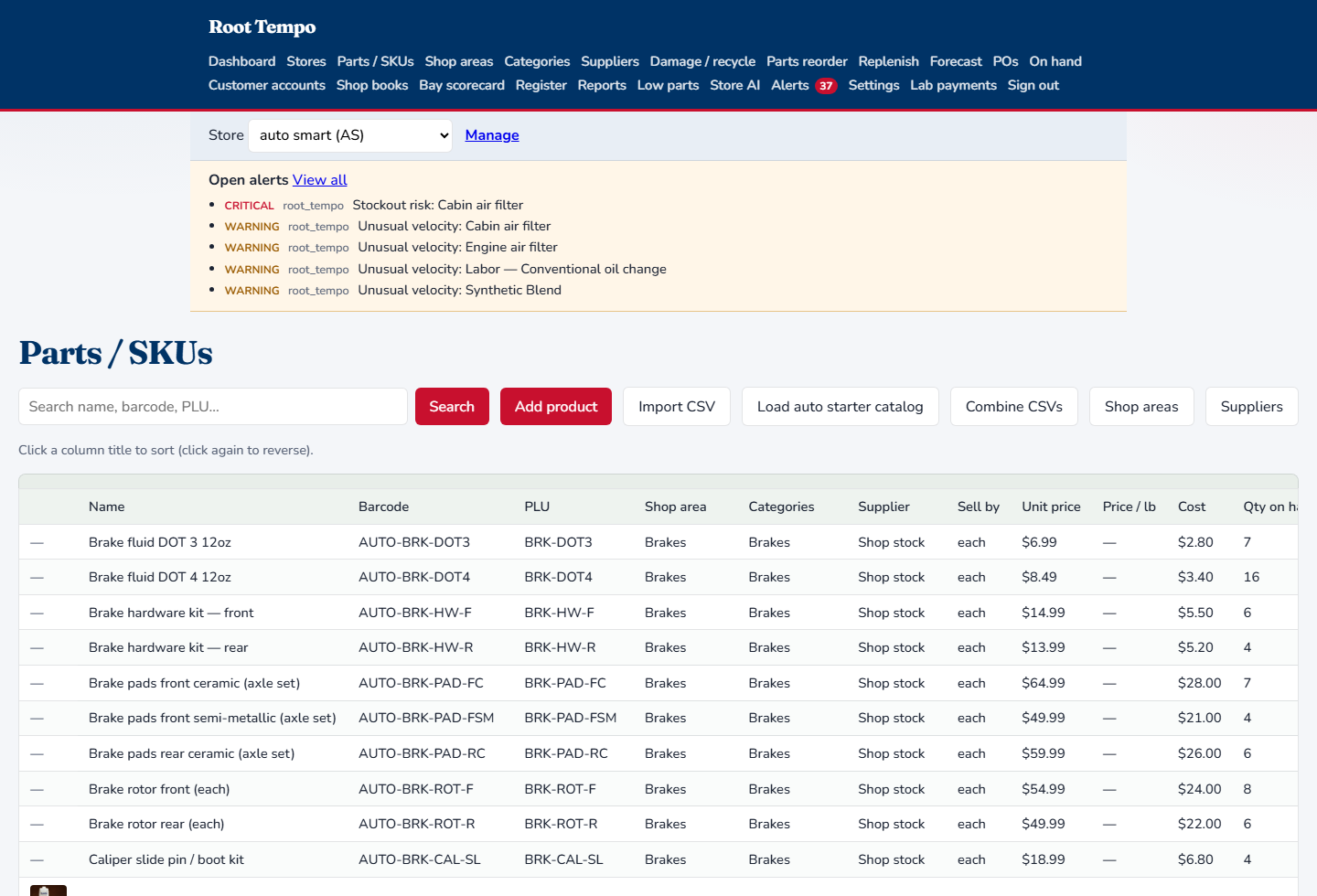
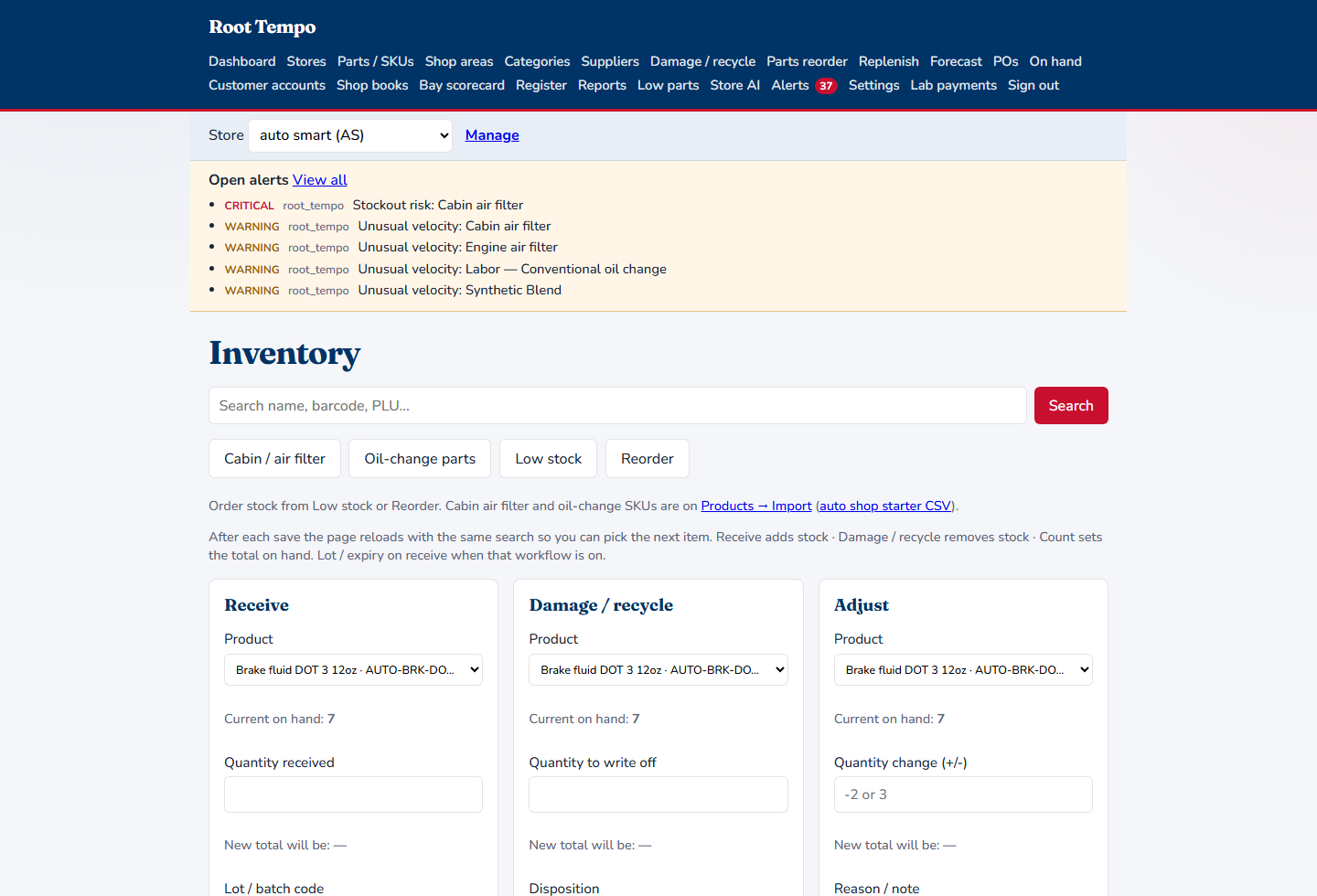
Inventory is a ledger. Receive adds stock. A write-off removes it. A count sets the total. The reason words follow the industry: spoilage in grocery, damage and recycle in a shop.
Grocery can record a lot and an expiry on receive. The expiring view lists lots inside the door’s window, ready to waste.
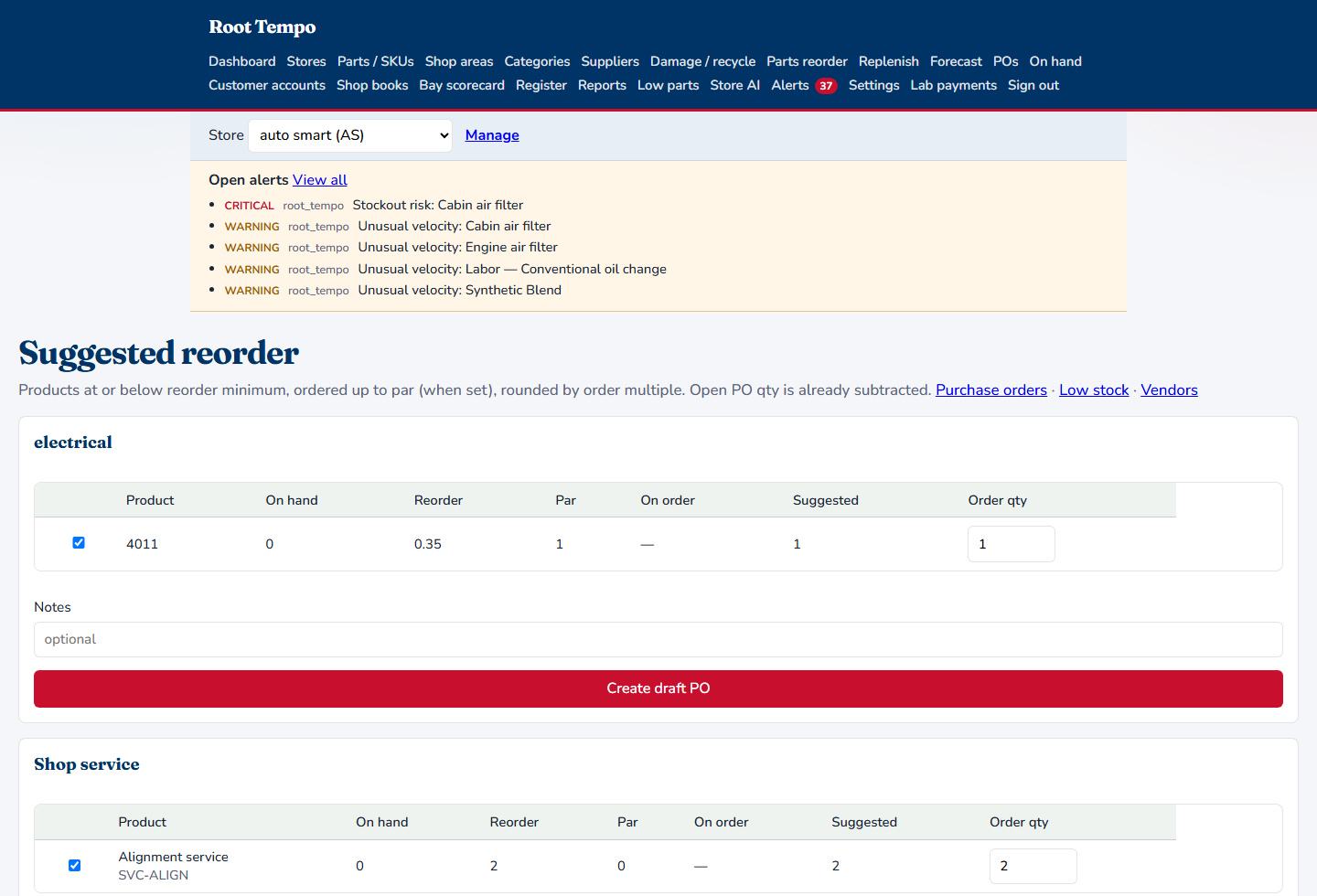
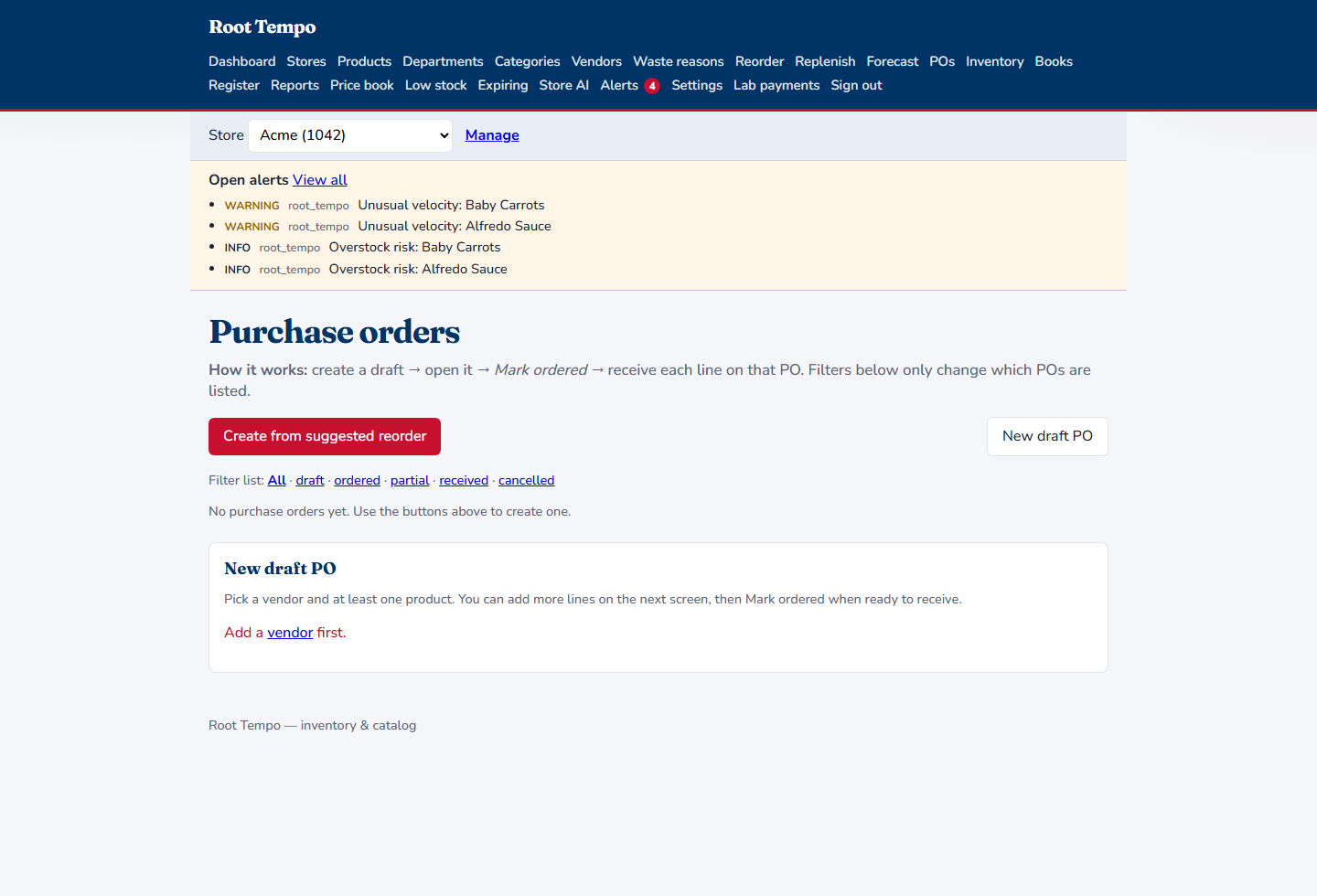
Reorder suggests a quantity from the minimum and the par, rounded to the order multiple, with anything already on a purchase order taken off. One click drafts the PO. Mark it ordered, then receive each line back into on-hand.
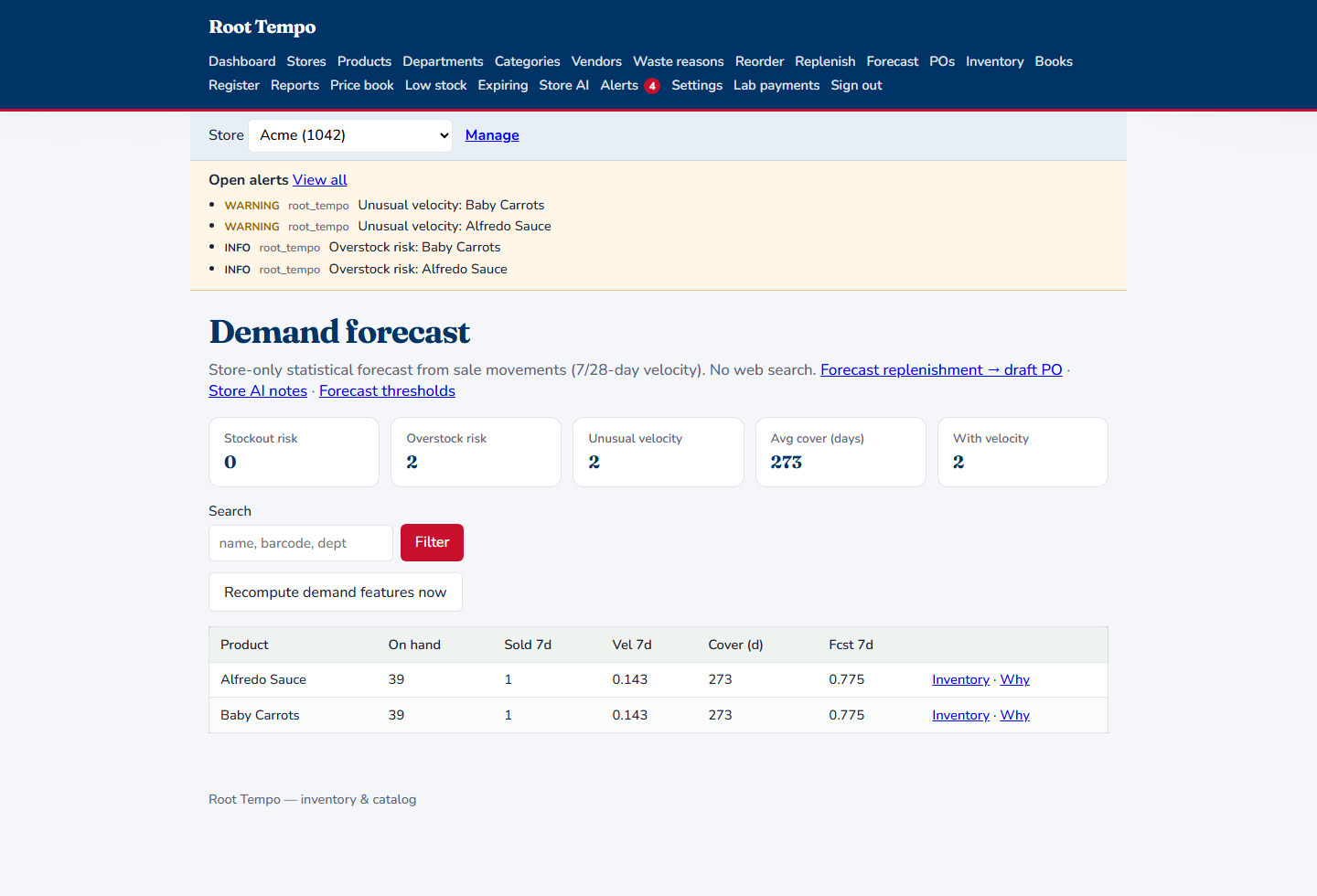
Demand is the last four weeks of sale movements on this door. Cover is how many days the on-hand lasts at that pace. Stockout risk, overstock, and unusual velocity raise alerts. Replenishment can draft a PO from that forecast. Nothing is looked up on the web.
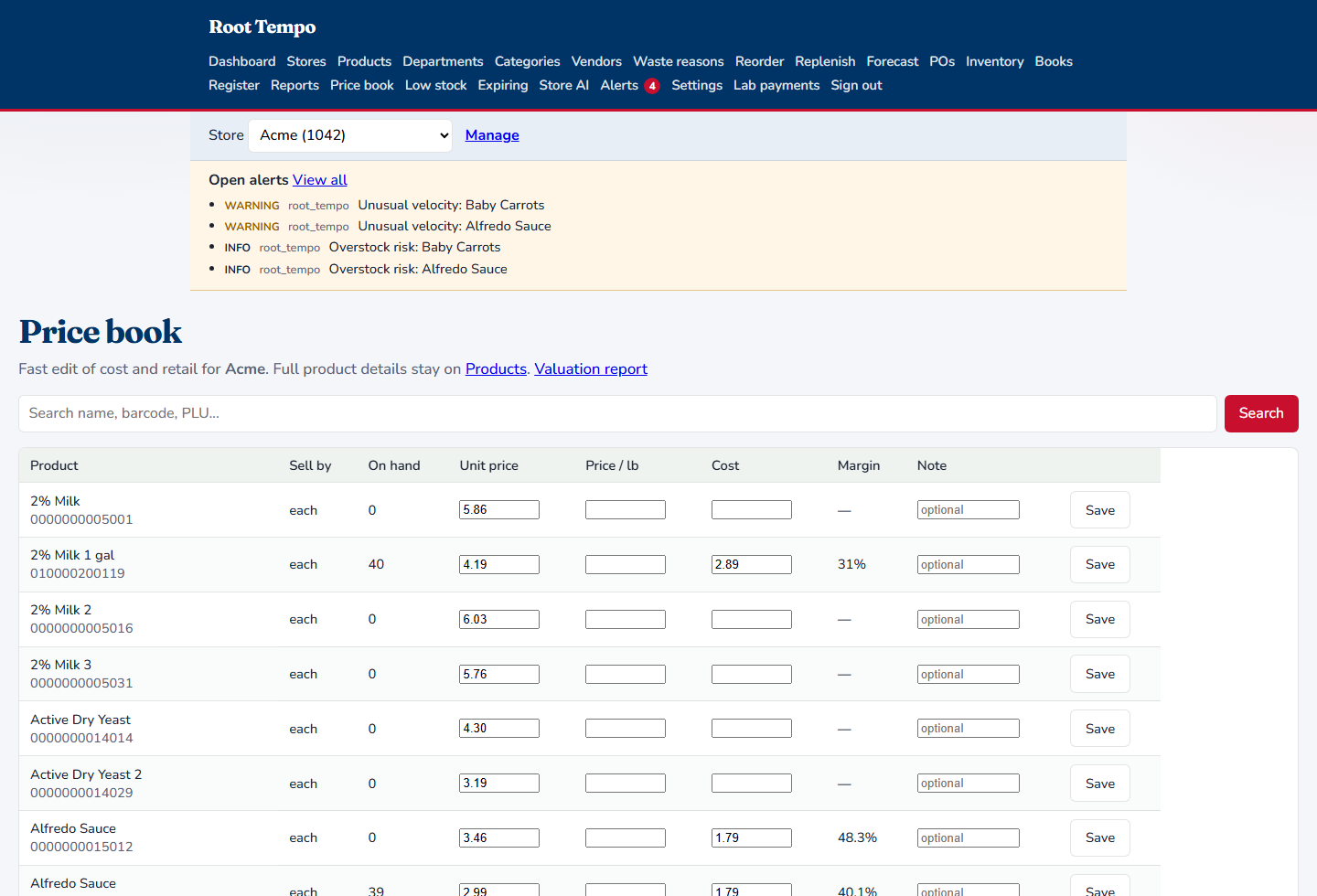
The price book is the fast edit for cost and retail. Margin shows as you type. Full item setup stays on the product. Grocery and QSR use it. A property door leaves it off.
The register rings the visit: scan or key the item, tender, print the receipt. On a shop door the screen asks for the DutySeal job id so extras land on the visit the bay already opened.
A lab door decrements stock so the office can prove the path. Starting that till live is a separate switch. Pay-at-store on StoreTempo is the same lab path: it records the sale for inventory. Card capture stays on StoreTempo, and it stays off until you turn it on.
Posted entries are reversed, not edited. Income, cost, shrink, and expense roll into a profit and loss for the door. A property door’s rental income posts here. A shop’s valuation report prices what is on the shelf.
DutySeal can send hours and alerts. It does not pull this journal back.
In step
There is no shared login and no shared database. A door is linked by its store number and by signed calls. The industry name is shared so a grocery org stays a grocery org on all three.
Settings pushes this door’s catalog and on-hand with that door’s key. The shopper sees that door’s list. A property door is not given the grocery file.
A settled sale posts to this door and decrements on-hand. The same sale is applied once. A catalog miss waits and retries so stock is not skipped.
The invoice is created here. The occupant sees it on StoreTempo and pays there. Staff catalog that payment into the books once, matched on the payment reference.
Shoppers and occupants never get a Root Tempo password. Managers can be handed in from StoreTempo Team and can switch any door they are allowed to open. Clerks stay on the doors they are assigned.
Same install
DutySeal is one product. A vertical is a pack: labels, duties, and which modules show. Root Tempo uses that same industry. The pack changes the words on the nav and which tools are on. It does not stand up a second system.
Grocery & convenience
Departments, categories, vendors, lots, expiry, the price book, and forecast are on. Pickup can be on for StoreTempo. Delivery stays off unless you turn it on.
Catalog, on-hand, waste reasons, reorder, and the till. A 7-day expiry window lists lots to waste. The morning brief calls out unusual velocity.
StoreTempo is the shopper. DutySeal keeps cold-chain walks, temperature logs, and the cash reconciliation. Those duties are not a second inventory.
QSR, one unit or many
A single restaurant says Menu items, Stock, and Menu prices. Stations and lot tools stay off. A multi-unit door turns stations, pars, and lots back on. Pickup and delivery flags tell StoreTempo how that door fulfills.
Ingredients and menu items, suppliers, restock, and the register. Forecast still comes from this door’s sales.
DutySeal keeps Open, Mid, and Close, temperatures, and tips. The tip calculator stays on the duty board.
General retail
The catalog and the till stay. Kitchen lots, expiry, and grocery department names stay with the grocery preset.
Items, on-hand, reorder, and the register for that door.
DutySeal keeps the cash walk and incident record. There is no kitchen pack on that duty board.
Property
The customer is the management company. A suite is an occupant account, not a product. The register stays off. Rent / accounts, rent / books, and the space scorecard are the nav.
An invoice is issued here. A rent schedule sends one rent invoice per period. A measured bill is reading ÷ rate quantity × rate amount — 150 kWh when 100 kWh is $250 comes to $375. The same payment is cataloged once.
The occupant signs in on StoreTempo and pays the bill there. DutySeal Spaces holds the lease start, end, and amount as facts. Morning walk and evening lock stay on the duty board.
Auto shop
Parts and SKUs, shop areas, damage and recycle, a bay scorecard, customer accounts, and the register. A starter catalog can load oil, brakes, and common shop parts.
On-hand for the jobber parts. Suggested reorder. The register rings extras against the DutySeal job. Valuation prices the shelf.
DutySeal Shop owns the bay, the job slip, labor, and the vehicle. A paid service SKU can open a booked job. The dollars stay here. StoreTempo can hold the bay window and the parts cart.
Fleet and tire
Tire and trucking uses the auto pack. Company trucks, driver tickets, and the wholesale delivery board live in DutySeal. Commercial sell and the invoice stay here.
Parts, the till, and customer accounts. An account can be marked as a fleet account, with vehicles and a nationwide number. A due-count can arrive from the delivery board. The scan and the route stay in DutySeal.
DutySeal holds the truck as an asset, the pre-trip walk, fuel, and the work order a driver files. Closing that work order puts the truck back in service.
Warehouse
SKUs, zones, suppliers, and write-off reasons for damage and returns. The register and accounts stay available when that building also sells or bills.
On-hand, reorder, and the movement ledger. Grocery aisle language stays off.
DutySeal keeps safety walks and vendor jobs. Warehouse is a shape of the same operations product, not a separate app.
Construction
The site day is a DutySeal pack: open the site, toolbox, crew duties, close the hazards, equipment hours. Trucks reuse the same vehicle walk as fleet.
Materials on hand, vendors, accounts, and a till when the job sells something. Forecast can watch usage. Lot and expiry tools stay off.
DutySeal seals the site. The foreman’s close stays on the duty board. The material count and the bill stay here.
Manufacturing
DutySeal runs mill start-up, the converting changeover, pack, and the dock seal. That pack does not inherit a warehouse duty list. Root Tempo treats the business as a warehouse door: SKUs, zones, damage and returns, on-hand, and accounts.
Inputs and finished units as SKUs. Receive into a zone. Write off damage. Bill the account.
The changeover proof and the dock seal stay in DutySeal. Stock and the invoice stay here.
Cultivate
Rooms replace grocery departments. Lots and expiry stay off. Yield is not an aisle and it is not a grocery item. Accounts and usage forecast stay on.